Plug and Play Data Encryption - iShield Camera Card
Overview
The iShield Camera Card by Swissbit is a microSD card designed to provide strong data protection for your camera or other devices. Available in 16 GB and 32 GB versions, it offers a plug-and-play solution with robust AES encryption to ensure your data remains private.
Use Cases
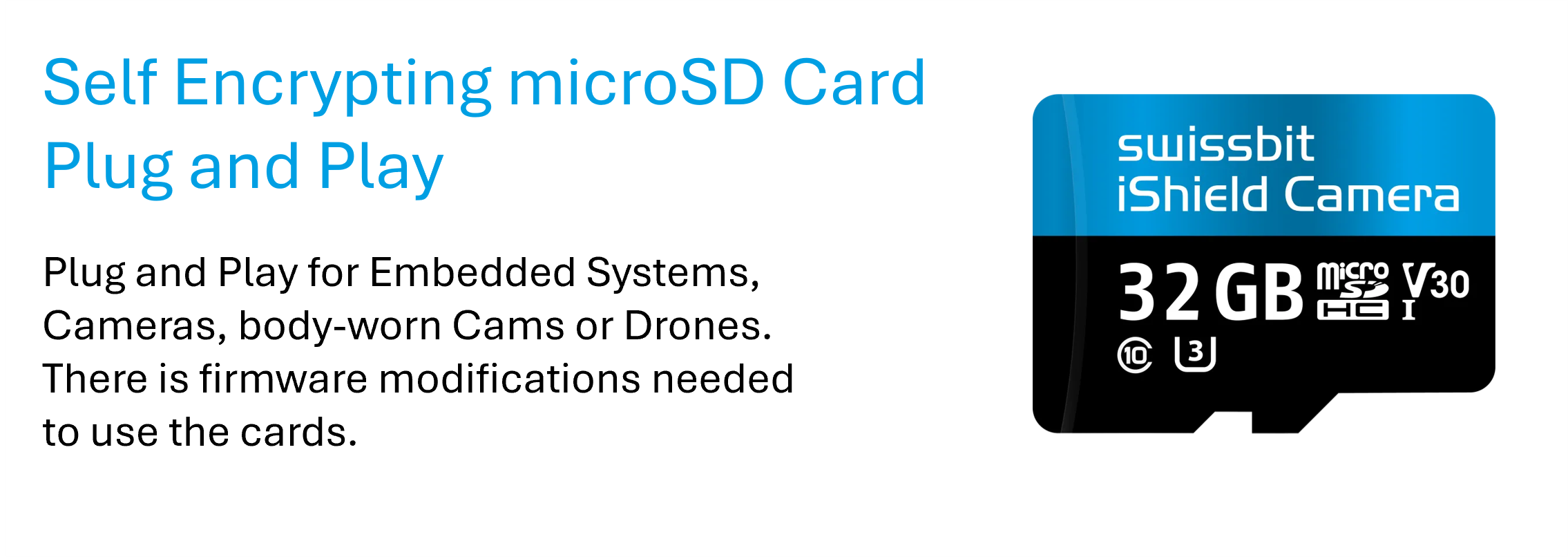
The iShield Camera Card is versatile and can be employed in a range of scenarios. For example, it is well-suited for embedded systems used for monitoring and logging sensitive data that should remain confidential. Another major use case is in cameras—whether DSLR cameras or surveillance cameras—where protecting recorded footage is critical.
Additionally, it is particularly valuable for body-worn cameras. In the event such a camera is lost or stolen, sensitive data remains protected and cannot be accessed by unauthorized parties. The card is also useful in drones, ensuring that any data captured in flight is securely stored and remains confidential.
Activation and PIN Setup
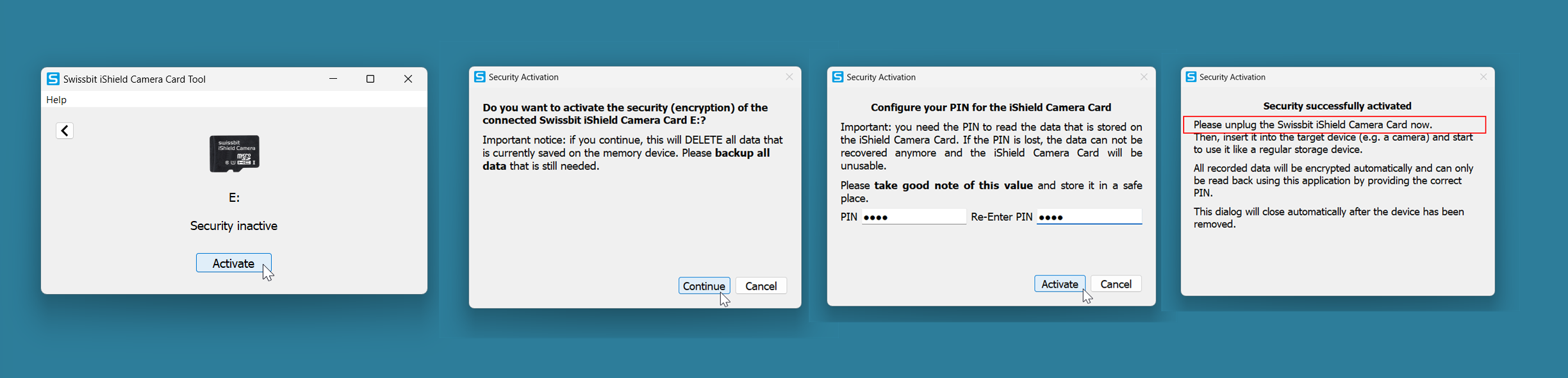
Before the card can be used, it must be activated using the iShield Camera Card Tool. During activation, you will set a personal PIN. This step initializes the encryption by generating an AES key, ensuring that all data stored on the card is protected from that point on.
💾 Infos about iCCT Tool can be found here: #iShield Camera Card Tool (iCCT)
Card Behavior and Usage
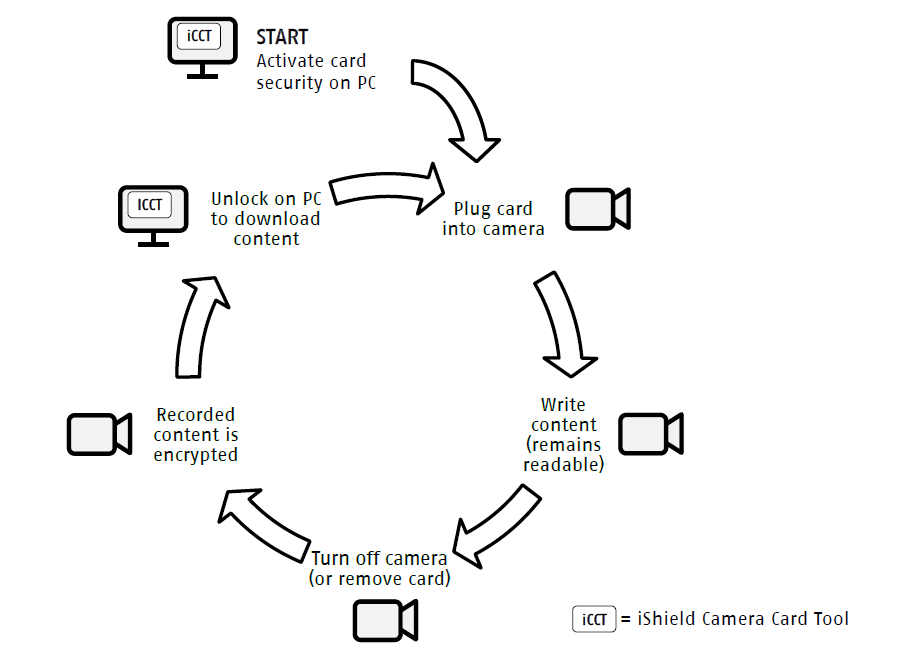
Once activated, the card behaves like a normal storage device, but with an added layer of security. Files recorded on the card are visible by name and size, but their content is inaccessible without the PIN. You can add and remove files while the card is powered. However, once the card is removed and reinserted, all data remains protected and unreadable without unlocking it.
Important Note on Testing and Read-Only Mode
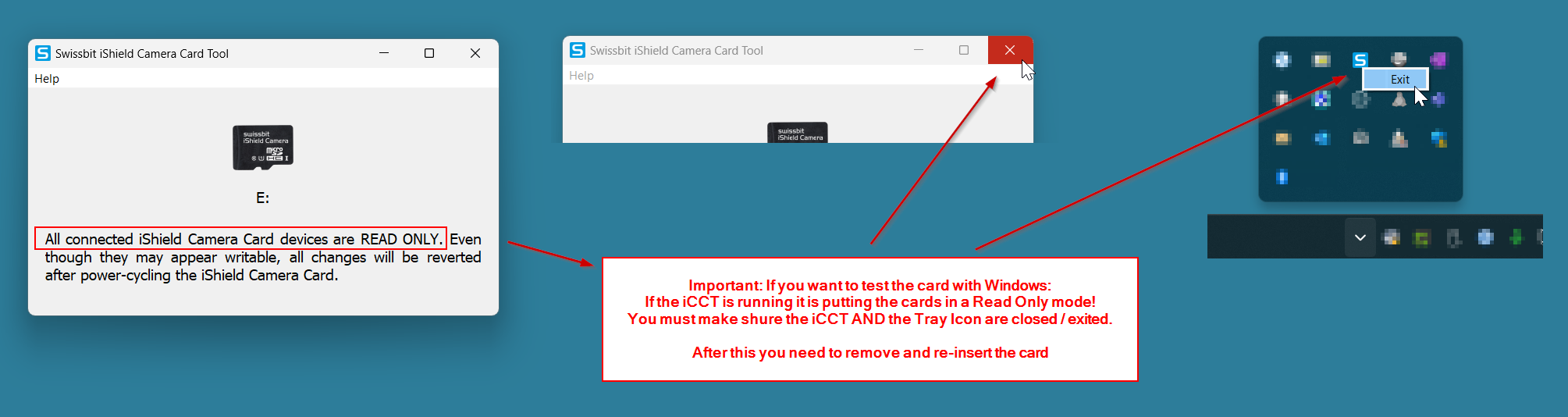
When testing the card on a Windows PC, remember to close the iShield Camera Card Tool completely after activation, including any tray icons. As long as the tool is running, the card remains in a read-only state. This means you cannot actually write or delete files, even though it might appear so. To fully test read and write operations, close the tool and reinsert the card.
Deactivating Security and Factory Reset
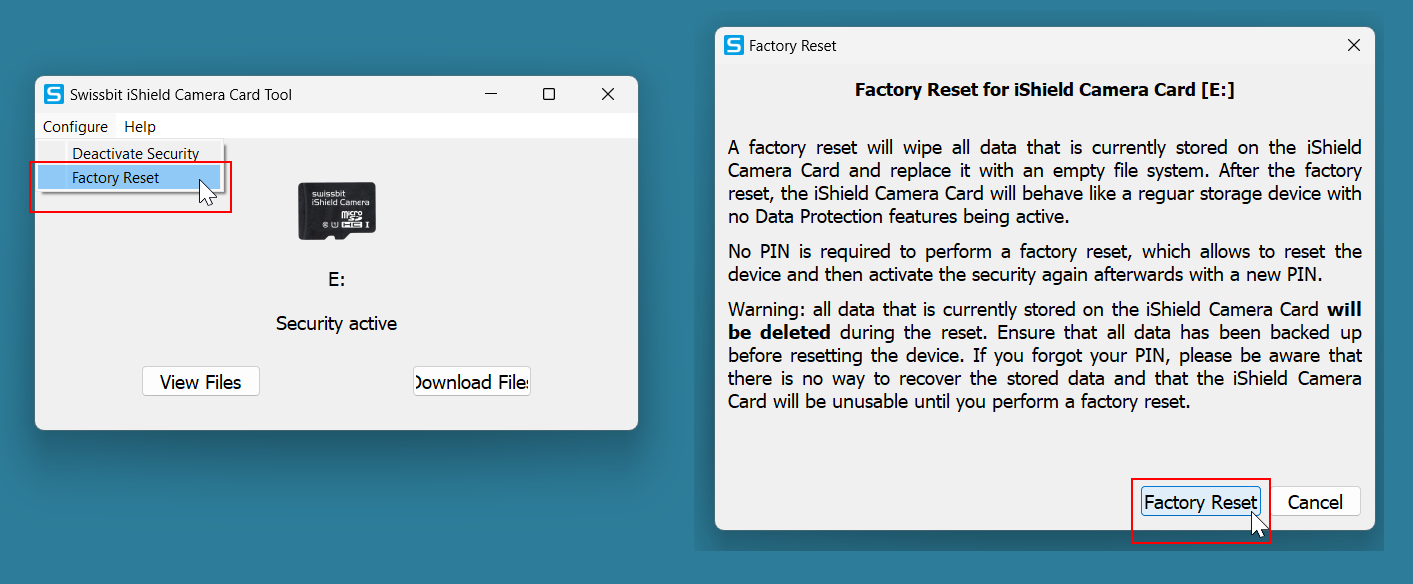
There are two ways to deactivate the card’s security. The first option, "Deactivate Security," requires your PIN and will restore the card to a normal state with all files intact and readable. The second option, a "Factory Reset," wipes all data by creating a new AES key. This is a quick and effective way to ensure that no previous data is recoverable, which is particularly useful for privacy regulations like GDPR.
Privacy Benefits of AES Encryption
By leveraging AES encryption, the iShield Camera Card ensures that wiping data is simple and thorough. Performing a factory reset means all previously stored data is rendered inaccessible, giving you a clean slate with no residual traces. This makes the card ideal for scenarios where data privacy and secure data removal are critical.
Compatibility Considerations
While the iShield Camera Card is designed to be plug-and-play, it may not work perfectly with all devices. Some products may have different behaviors on the SD bus protocol or might experience power-related issues that cause unexpected power cycles. These power cycles can lead to changes in the AES key, affecting the card’s behavior.
For this reason, we strongly advise ordering a small quantity of cards first and testing them with your specific device or system. Once you confirm compatibility, you can order more units confidently. While Swissbit cannot guarantee universal compatibility with all products worldwide, our application engineering team is available to assist you with any special requirements. We also maintain a whitelist of verified compatible devices on our website for the iShield Camera Card.
Viewing the Firmware Version of a card
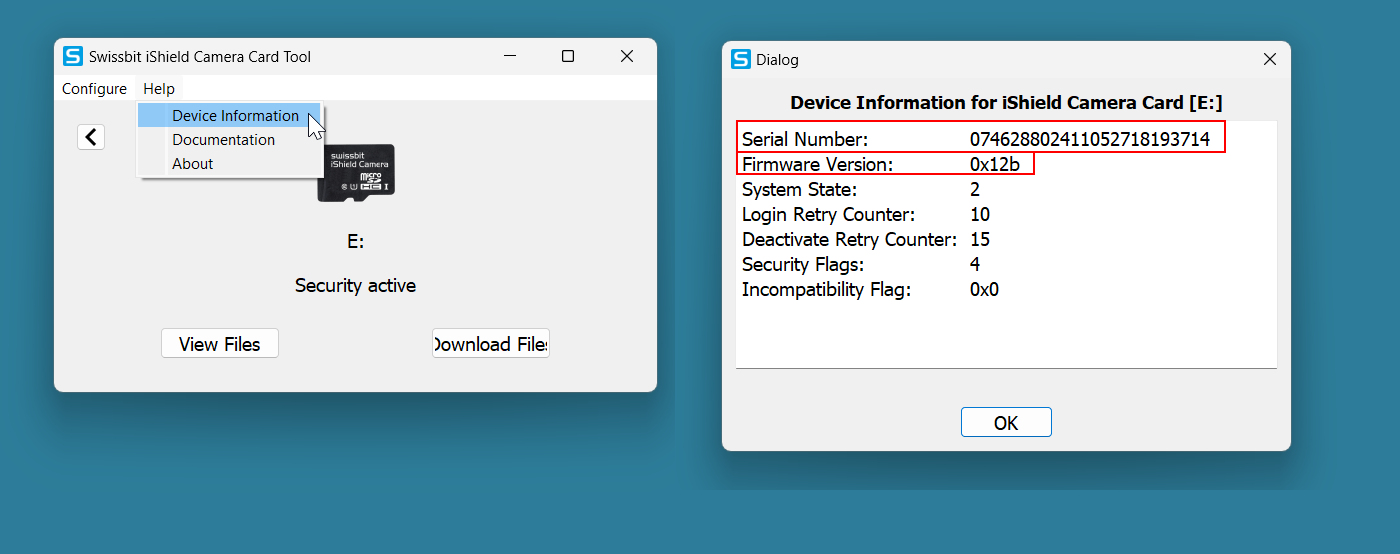
To find out the firmware version of the card, you can open the iShield Camera Card Tool, go to the "Help" section, and select "Device Information." There you'll find details like the serial number, the number of failed login attempts, and importantly, the firmware version of the card.